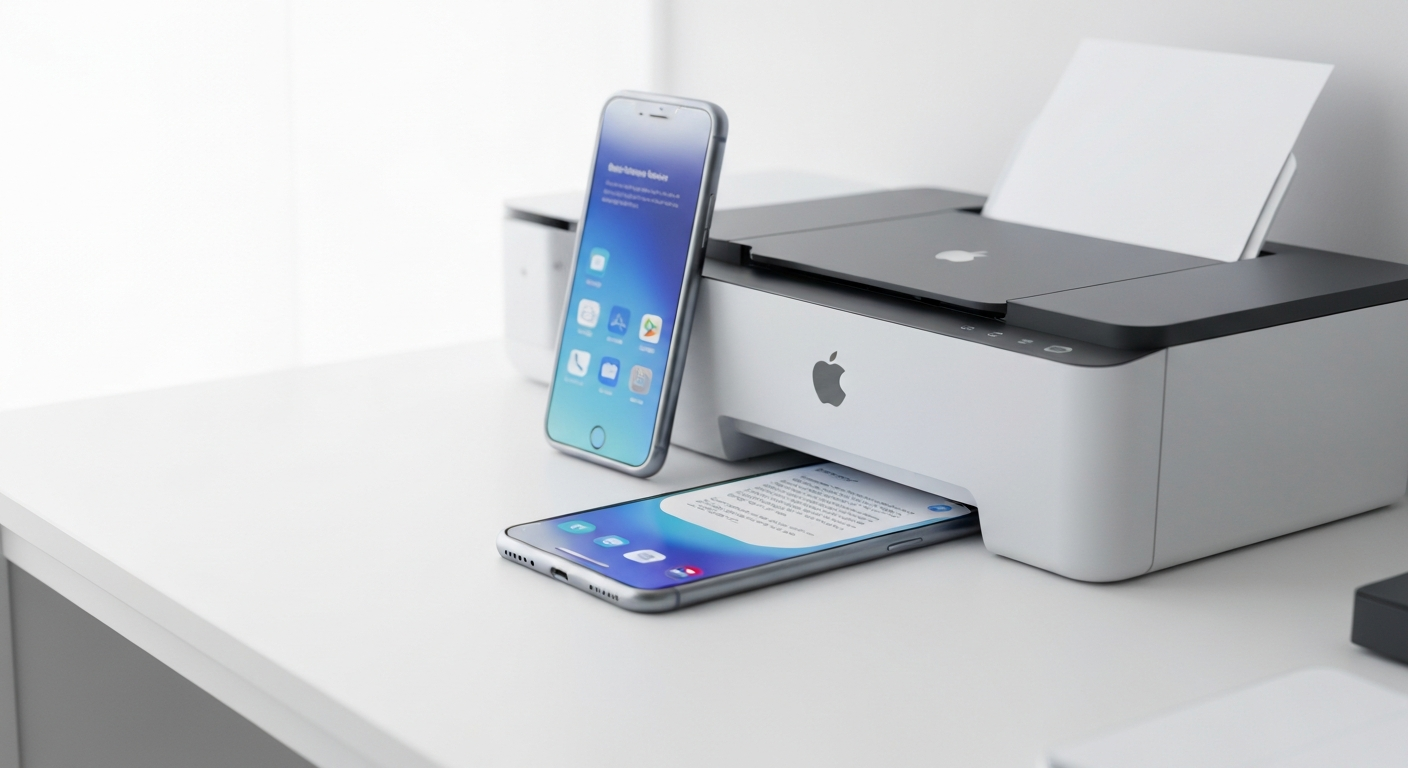
Your iPhone can already print. AirPrint is built into iOS, and if you own a reasonably modern Wi-Fi printer, you can print from Safari, Photos, Mail, and Files without installing anything. Tap Share, tap Print, pick your printer, done.
So the real question is not whether you can print without an app. It is what the built-in print sheet leaves you doing by hand — and whether that adds up to enough friction to be worth fixing.
This guide compares eight printer apps available in 2026, explains what each one actually does, and is honest about which ones only earn their place if you own a specific brand of printer. For the basic printing workflow, start with our print from iPhone guide. For Android-specific options, see print from phone.
What the Built-In Print Sheet Does Not Do
iOS printing is deliberately minimal. It is a sheet that appears on top of whatever app you are already in, and it disappears the moment the job is sent. That design has four consequences worth naming.
There is no document library. Every print job starts from wherever the file happens to live. The lease PDF is in Mail, the boarding pass is in Files, the receipt is in Photos. Printing the same document a second time next month means finding it a second time.
There is no scanning. iOS can scan through Notes or Files, but the result lands in a different app from the one you print from, so a scan-then-print job is a multi-app errand.
Layout control is thin. You get copies, page range, and sometimes double-sided. Paper size, orientation, and colour handling depend on what the printer driver exposes, and on many printers those controls simply are not there.
Nothing is remembered. No print history, no saved settings per document, no queue. Each job is a fresh start.
None of this matters if you print occasionally. All of it matters if you print weekly — work documents, school forms, receipts, shipping labels. That is the line to judge these apps against.
One thing no app changes: AirPrint is still the foundation. Nearly every app on this list sends print jobs through AirPrint on iPhone or Android’s print framework. An app does not magically connect your phone to a printer that lacks wireless support. If your printer is not AirPrint compatible, check our AirPrint compatible printers list before spending time on apps.
Quick Comparison
| App | Best for | Scanning | Works with | Price |
|---|---|---|---|---|
| Smart Printer | Everyday printing and scanning on iPhone | Yes | Any AirPrint printer | Free + optional subscription |
| HP Smart | HP owners who want ink alerts | Yes | HP only | Free |
| Canon PRINT | Canon setup and photo printing | Yes | Canon only | Free |
| Epson Smart Panel | EcoTank ink tracking | Yes | Epson only | Free |
| Brother iPrint&Scan | Straightforward Brother print and scan | Yes | Brother only | Free |
| Printer Pro | Fine-grained layout control | No | Any AirPrint printer | Paid |
| Adobe Scan | Scanning with best-in-class OCR | Yes (cannot print) | Any (via another app) | Free |
| Lexmark Mobile Print | Lexmark office printers | Yes | Lexmark only | Free |
The pattern is worth noticing before reading the individual entries: five of the eight only work with one manufacturer’s hardware. If you want one app that keeps working after you replace your printer, the brand-neutral options are the short list.
1. Smart Printer (Free with Premium Options)
Our top pick
Smart Printer
- A document library that imports from Files, Photos, email, and cloud storage
- Camera scanning with auto-crop, straight to print or PDF
- Paper size, orientation, double-sided, and colour controls
- Works with any AirPrint printer, whatever brand you own
Smart Printer is a third-party app that wraps AirPrint printing in the workflow iOS leaves out. It is our top pick because it addresses all four gaps above in one place, and it does not care which brand of printer you own.
You import documents from Files, Photos, email, or cloud storage into a single library, so the lease PDF and the school form live in the same place next month. You scan physical papers with the iPhone camera and auto-crop trims the edges, then that scan prints or saves as a PDF without leaving the app. Before printing, you set paper size, orientation, double-sided, and colour or black-and-white — controls the built-in sheet often hides or omits entirely. It also handles poster printing across multiple sheets, printable forms and planners, and marking up a PDF before it goes to paper.
What it does not do: connect to printers that lack AirPrint. It uses the same AirPrint protocol as the built-in Share menu — the value is in the workflow around printing, not in bypassing compatibility limits. It is also not a replacement for manufacturer maintenance tools; it will not update your printer’s firmware or run a nozzle-cleaning cycle.
Best for: iPhone users who print and scan regularly and want one app instead of juggling several, especially in households with more than one printer brand.
Limitations: Some features require a subscription. No firmware updates or deep ink diagnostics. Requires an AirPrint-compatible printer, same as iOS itself.
2. HP Smart (Free)
HP Smart is HP’s official app for managing HP printers. It handles Wi-Fi setup, printing, scanning, copying, ink ordering, and firmware updates. If you own an HP DeskJet, ENVY, OfficeJet, or LaserJet, this is the app HP expects you to use.
Printing works through HP’s own protocol as well as AirPrint, which means some older HP printers that lack native AirPrint may still work through the app. That is a genuine advantage if you are locked into an older HP model.
Best for: HP printer owners who want ink monitoring, remote printing, and firmware updates in one app.
Limitations: Most useful with HP hardware. Features vary by model. Some functions require an HP account. If you do not own an HP printer, skip this one. See our HP Smart app alternatives guide if HP Smart is not working for you.
3. Canon PRINT (Free)
Canon PRINT (also called Canon PRINT Inkjet/SELPHY) is Canon’s companion app for PIXMA inkjet and SELPHY photo printers. It supports printing, scanning, and printer maintenance for Canon hardware.
The app can also print photos directly from your camera roll with basic editing — cropping, brightness, filters — before sending to a Canon photo printer. For standard document printing, it routes through AirPrint like any other app.
Best for: Canon printer owners, especially those who print photos on PIXMA or SELPHY devices.
Limitations: Canon-only. Photo editing features are basic compared to dedicated photo apps. Document management is minimal. Our Canon PRINT app guide covers setup and the common failure points in detail.
4. Epson Smart Panel (Free)
Epson Smart Panel manages Epson EcoTank, WorkForce, and Expression printers. It covers Wi-Fi setup, printing, scanning, copy functions, and ink level monitoring. Epson’s EcoTank line is popular for low running costs, and the app reflects that with ink usage tracking.
Best for: Epson printer owners, particularly EcoTank users who want to monitor ink levels and print from mobile.
Limitations: Epson-only. Interface can feel cluttered compared to simpler apps. Some features require firmware versions that older models may not support. See our Epson Smart Panel guide for setup and the differences from the older iPrint app.
5. Brother iPrint&Scan (Free)
Brother iPrint&Scan supports printing and scanning on Brother laser and inkjet printers. Brother’s app is straightforward — less feature-heavy than HP Smart, but reliable for basic print and scan tasks on Brother hardware.
Best for: Brother printer owners who need mobile printing and scanning without extra complexity.
Limitations: Brother-only. No document library or advanced workflow features. Scanning quality depends on your iPhone camera rather than the app itself. Our Brother iPrint&Scan guide explains the rename to Mobile Connect and which app you should actually download.
6. Printer Pro by Readdle (Paid)
Printer Pro is a long-standing iOS app that prints documents to AirPrint-compatible printers with more control over layout, page range, and paper size than the built-in dialog offers. It also includes a built-in web browser for printing web pages with better formatting control.
Readdle is a respected iOS developer (they also make Documents by Readdle and PDF Expert), and Printer Pro reflects that polish. It is a paid app — not subscription-based — which some people prefer.
Best for: Power users who want fine-grained print control and a dedicated web printing browser.
Limitations: Costs money upfront. No scanning. No ink monitoring. Still requires AirPrint-compatible printers for wireless printing.
7. Adobe Scan (Free)
Adobe Scan is not strictly a printer app — it is a scanning app that creates PDFs from photos of documents. But it belongs on this list because scanning and printing are two halves of the same workflow, and Adobe Scan does the scanning half exceptionally well.
It automatically detects document edges, enhances contrast, runs OCR to make text searchable, and saves to Adobe Document Cloud or exports to other apps. You can then print the resulting PDF through AirPrint or any print app.
Best for: People who primarily need to scan documents and occasionally print them.
Limitations: No direct printing — you scan in Adobe Scan, then print through another app or the built-in dialog. Requires a free Adobe account for cloud storage. OCR quality is excellent but the app pushes Adobe’s ecosystem.
8. Lexmark Mobile Print (Free)
Lexmark Mobile Print supports printing to Lexmark office and home printers. Lexmark has a smaller consumer presence than HP or Canon, but their office printers are common in business environments. The app handles print job submission and basic printer status for Lexmark devices.
Best for: Lexmark printer owners, particularly in office settings.
Limitations: Lexmark-only. Limited consumer appeal. If you do not have a Lexmark printer, this app has no use for you. Note that office IT departments sometimes disable mobile printing entirely, in which case no app will help. Our Lexmark Mobile Print guide covers setup, AirPrint vs. the official app, and what to do when IT has locked the device down.
How to Choose the Right Printer App
The decision tree is simpler than eight app descriptions might suggest.
You print or scan most weeks: Smart Printer, for the document library, scanning, and print controls in one brand-neutral app.
You own a specific brand and want ink monitoring and firmware updates: Use the manufacturer’s app (HP Smart, Canon PRINT, Epson Smart Panel, or Brother iPrint&Scan) — and note that you will need a different one for every brand you own.
You need advanced print layout control and nothing else: Printer Pro by Readdle.
You primarily need scanning with searchable OCR: Adobe Scan, then print through AirPrint when needed.
Your printer is not AirPrint compatible: A manufacturer app may help if one exists for your brand. Otherwise, consider upgrading to an AirPrint compatible printer rather than chasing app workarounds.
Printer Apps vs. Google Cloud Print
If you used Google Cloud Print before it shut down in 2020, you may be looking for a replacement. Google Cloud Print let you print to any printer connected to a computer, even if the printer itself lacked wireless support. Nothing fills that exact role today.
On iPhone, AirPrint replaced most of what Cloud Print offered — but only for AirPrint-compatible printers. On Android, the built-in print service and manufacturer apps cover similar ground. Our Google Cloud Print alternative guide covers the current landscape for both platforms.
The honest summary: if you relied on Cloud Print because your printer had no wireless support, you either need a new printer or a computer running full time as a print server. No app fully replicates the old Cloud Print model.
Privacy and Security Considerations
Printer apps handle your documents, which means privacy matters.
Apps that print locally over AirPrint — including the built-in iOS dialog and Smart Printer — send jobs directly from your phone to the printer on your local network. Your documents do not pass through a cloud server.
Manufacturer apps and apps like Adobe Scan may upload documents to cloud servers for processing, OCR, or storage. Read the privacy policy if you print sensitive documents like medical records, financial statements, or legal papers.
Avoid obscure printer apps with few reviews and vague privacy policies. Stick to established developers and manufacturer apps from the App Store.
Setting Up Any Printer App
The setup process is similar across most apps on this list.
- Connect your printer to Wi-Fi. See our connect printer to iPhone guide if you have not done this yet.
- Connect your iPhone to the same Wi-Fi network.
- Download the app and grant necessary permissions (local network access, camera for scanning, files access for documents).
- The app should discover your AirPrint-compatible printer automatically.
- Import or open a document, adjust settings, and print.
If the app cannot find your printer, the problem is almost always network-related — not app-related. Our AirPrint not working guide covers the fixes.
Apps for Other Kinds of Printers
Everything above assumes a document printer — an inkjet or laser that takes A4 or Letter paper. If your printer does something more specific, none of these apps are the right tool and the manufacturer’s own software usually is.
- Portable, label, and receipt printers connect over Bluetooth rather than Wi-Fi, which puts them outside AirPrint entirely. Our label printer apps guide maps Dymo, Brother, Zebra, Niimbot, and Phomemo to the app each one actually needs. Our Bluetooth printing guide explains which devices work that way and why your office printer almost certainly does not.
- Smaller and discontinued brands are their own problem. Dell, Kodak and Pantum apps covers what still functions for hardware whose manufacturer has moved on.
- 3D printers are a different category. 3D printer companion apps explains what they monitor and why none of them replace your slicer.
The common thread is that these devices mostly do not support AirPrint at all, so a general-purpose print app cannot reach them regardless of how good it is.
The Bottom Line
The best printer app depends on how often you print and how many brands you own.
Print most weeks, scan paper, or own printers from two different manufacturers, and a brand-neutral app pays for itself in the time you stop spending hunting for files and re-entering settings — which is why Smart Printer tops this list. Manufacturer apps are worth keeping alongside it for the one thing they do that nothing else can: ink levels, firmware, and hardware maintenance for their own printers.
Whichever you choose, confirm your printer supports AirPrint and is connected to your Wi-Fi network first. That solves the majority of mobile printing problems before an app enters the picture. For everything else, our print from iPhone guide and print from phone guide cover the full workflow on both platforms.