If you want to print from your iPhone without fighting software workarounds, you need a printer that supports AirPrint. That sounds simple — and for most people buying a printer in the last few years, it is. But “wireless printer” and “AirPrint compatible” are not the same thing, and the difference matters when you tap Print on your phone and nothing shows up.
This guide explains what AirPrint compatibility actually means, which brands and models support it, how to check a specific printer before you buy, and what your options are if you already own a printer that is not on the list. For the full printing workflow once you have a compatible printer, see our guide to printing from iPhone.
What Makes a Printer AirPrint Compatible?
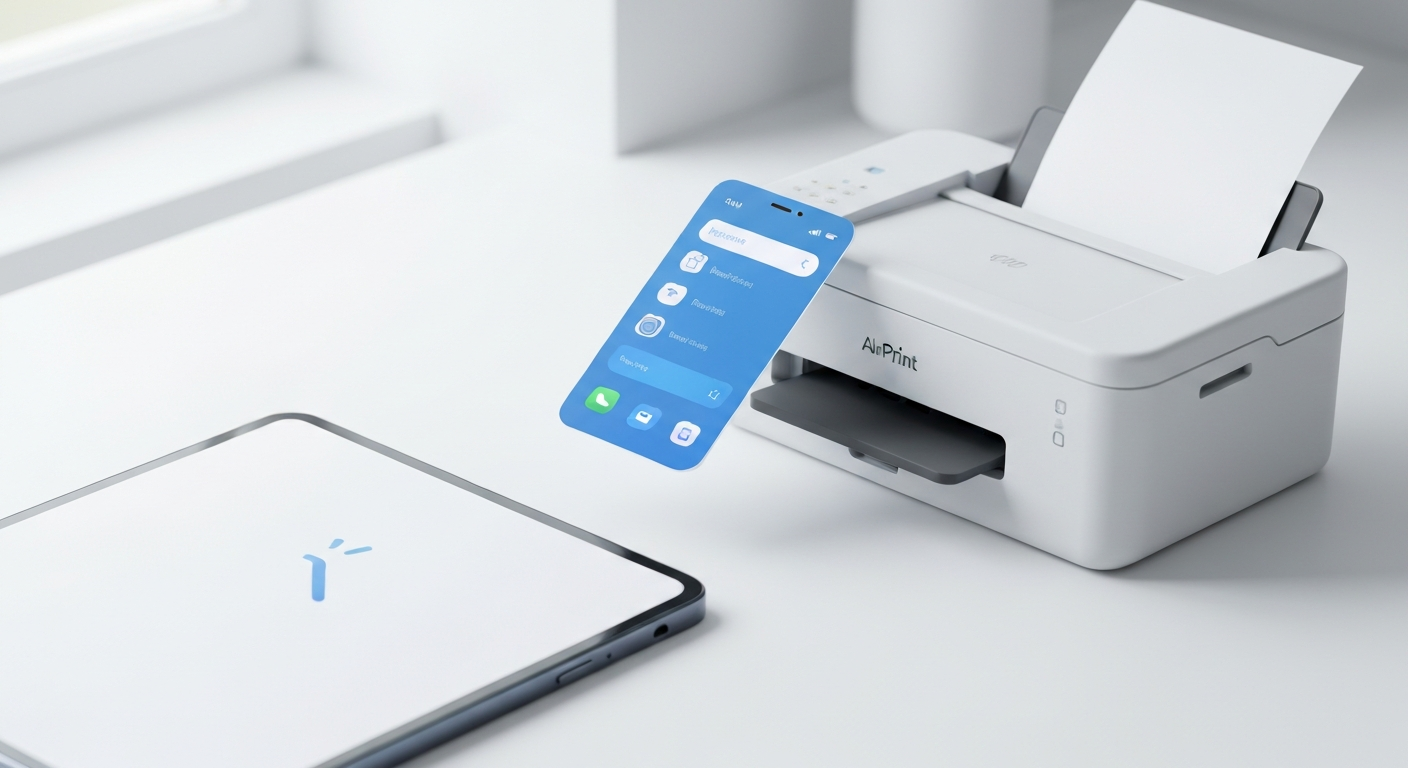
AirPrint is Apple’s wireless printing standard. It lets iPhones, iPads, and Macs send print jobs to a printer over Wi-Fi without installing drivers or manufacturer apps. The printer handles the job natively — your phone discovers it on the local network, sends the document, and the printer outputs it.
For a printer to be AirPrint compatible, the manufacturer must implement Apple’s AirPrint protocol in the printer’s firmware. This is not something you toggle on or download later. Either the printer shipped with AirPrint support, or it did not.
Wi-Fi connectivity is a prerequisite but not sufficient. A printer can connect to your router and still lack AirPrint if the manufacturer chose to support only their own app or other protocols. This is common on very old models, some label printers, and certain budget devices where the manufacturer cut costs by skipping AirPrint licensing.
If you want the full background on how the protocol works, our what is AirPrint guide covers the technical side in plain language.
Which Printer Brands Support AirPrint?
Most major consumer and office printer brands include AirPrint on at least some of their models. Here is an honest overview of what to expect from each.
HP has included AirPrint on the majority of its consumer inkjet and LaserJet models for years. The DeskJet, ENVY, OfficeJet, and Tango lines generally support it. HP’s entry-level models sometimes drop AirPrint to hit a lower price, so check the spec sheet. Our HP AirPrint printers guide lists specific model families.
Canon includes AirPrint on most PIXMA inkjet printers and many imageCLASS laser models. Canon’s SELPHY photo printers and some older PIXMA variants are exceptions. See our Canon AirPrint printers guide for model-level detail.
Epson supports AirPrint across most EcoTank, WorkForce, and Expression models. Epson has been consistent about including it even on mid-range home printers. Our Epson AirPrint printers guide breaks down the current lineup.
Brother includes AirPrint on most HL laser printers and MFC multifunction models. Brother tends to be straightforward — if the model has Wi-Fi, it usually has AirPrint too. Check our Brother AirPrint printers guide for specifics.
Other brands vary. Lexmark, Samsung (older models), Ricoh, Xerox, and Sharp include AirPrint on selected office-oriented models. Dell and Kodak had limited AirPrint support before exiting or shrinking their printer businesses — our Dell, Kodak and Pantum guide covers what still works on those. For any brand outside the big four, check the model number against Apple’s list rather than assuming.
How to Check If Your Printer Is Compatible
Before buying a new printer or troubleshooting an existing one, verify AirPrint support for the exact model number — not the product line, not the series name, the specific model printed on the device or box.
Check the box and manual. AirPrint-compatible printers almost always display the AirPrint logo on packaging or mention AirPrint in the specifications section of the manual.
Look up the model number online. Search for your model number plus “AirPrint.” The manufacturer’s product page lists supported protocols in the connectivity or specifications section.
Use Apple’s printer list. Apple maintains a list of AirPrint-compatible printers on its support site. Search for your model there for a definitive yes or no.
Print a network configuration page. On many printers, this page lists supported services including AirPrint. Consult your manual for how to print it — usually through the printer’s menu or by holding a button combination.
Try printing from your iPhone. If the printer is on Wi-Fi and your iPhone is on the same network, open Safari, tap Share, then Print. If the printer appears in the list, it supports AirPrint. This is the most practical test if you already own the printer.
AirPrint Compatible Printers by Category
People shop for printers in different categories. Here is how AirPrint support typically breaks down.
Home inkjet all-in-ones: This is the sweet spot. HP DeskJet Plus, Canon PIXMA TR and TS series, Epson EcoTank ET series, and Brother MFC-J models generally include AirPrint, Wi-Fi, scanning, and copying. If you print from your iPhone regularly, these are the models to target.
Laser printers for home and small office: HP LaserJet Pro, Brother HL-L series, and Canon imageCLASS models commonly support AirPrint. Laser printers are faster for text documents and do not dry out if you print infrequently. Confirm AirPrint on the specific model — not every laser printer includes it.
Photo printers: Canon SELPHY compact photo printers use their own app, not AirPrint. Larger photo-oriented inkjets like the Canon PIXMA Pro series do support AirPrint for standard photo printing. If photo printing from your phone is the main goal, check that the model supports borderless printing at the sizes you want — AirPrint support alone does not guarantee it.
Portable and pocket printers: Most portable thermal printers (HP Sprocket, Canon Ivy, Kodak Mini) do not use AirPrint. They connect through Bluetooth and proprietary apps. These are designed for small photo prints, not documents.
Office and enterprise printers: Many office copiers and MFPs from Ricoh, Xerox, Sharp, and Lexmark support AirPrint, but IT departments sometimes disable it. If you are trying to print at work, ask whether AirPrint is enabled on the network.
What If Your Printer Is Not AirPrint Compatible?
You have a printer, it works fine from your computer, but your iPhone cannot see it. Here are your realistic options — ranked by practicality.
Option 1: Replace the printer. If your current printer is old, expensive to maintain, or lacks Wi-Fi entirely, upgrading to an AirPrint-compatible model is the cleanest fix. Entry-level AirPrint inkjets are affordable, and you gain wireless printing, scanning, and often better print quality. This is the option we recommend for most home users.
Option 2: Use printer sharing from a Mac or PC. If you have a computer connected to the printer via USB, you can share the printer on your network. Macs can advertise shared printers as AirPrint devices through a feature sometimes called “AirPrint sharing” or printer sharing. This works but requires the computer to be on and awake whenever you want to print from your phone.
Option 3: Use a manufacturer app workaround. Some brands route print jobs through their cloud service or a local network app. HP Smart, for example, can send jobs to HP printers that lack native AirPrint through HP’s own protocol. This is not true AirPrint — it depends on the manufacturer’s app staying updated and supported.
Option 4: Buy a print server adapter. Third-party devices like Lantronix xPrintServer were designed to add AirPrint to existing printers. These products are largely discontinued, and remaining stock may not support modern iOS versions reliably. We do not recommend this path for most people in 2026.
Be honest with yourself about which option is worth the effort. For many people, a $80 AirPrint inkjet replaces hours of workaround troubleshooting.
Setting Up an AirPrint Compatible Printer
Buying an AirPrint printer is only half the job. You still need to connect it to Wi-Fi before your iPhone can find it. The setup process is the same regardless of brand:
- Plug in the printer and turn it on.
- Connect it to your Wi-Fi network using the control panel, WPS, or the manufacturer’s setup app.
- Connect your iPhone to the same Wi-Fi network.
- Open any app, tap Share, then Print, and select your printer.
Our AirPrint setup guide and connect printer to iPhone guide walk through these steps in detail. If the printer is on the network but your iPhone still cannot see it, the AirPrint not working guide covers diagnostics.
Once connected, printing is identical across all AirPrint models — no brand-specific steps on your phone. You can also use apps like Smart Printer to manage documents and send jobs to any AirPrint printer on your network. Smart Printer does not expand compatibility beyond AirPrint; it makes the printing workflow more convenient on top of the same protocol.
Buying a New AirPrint Printer: What to Look For
If you are shopping for a printer specifically to use with your iPhone, prioritize these features alongside AirPrint support.
Wi-Fi (not just Wi-Fi Direct). Wi-Fi Direct lets you connect a phone directly to the printer without a router, but it is less convenient for everyday home use. A printer that joins your home network is easier to manage long term.
Automatic duplex printing. Printing both sides saves paper. Most mid-range AirPrint printers include this; budget models often do not.
Scanning and copying. An all-in-one (print, scan, copy) adds utility without much extra cost. You can scan documents with your iPhone camera, but a flatbed scanner produces better results for formal documents.
Ink or toner costs. AirPrint compatibility does not tell you anything about running costs. EcoTank and laser models cost more upfront but less per page. DeskJet and entry-level PIXMA models are cheap to buy but expensive to refill.
Current model, not discontinued. Printer models rotate quickly. Buying a current-generation model means longer firmware support and easier replacement if something breaks.
Cross-reference any model you are considering with our brand guides: HP, Canon, Brother, and Epson.
AirPrint vs. Manufacturer Apps
A fair question: if AirPrint works without apps, why do HP, Canon, and others push their own?
Manufacturer apps add features AirPrint does not include: ink level monitoring, firmware updates, cloud scanning, remote printing when you are away from home, and printer maintenance tools. For initial Wi-Fi setup, manufacturer apps are genuinely helpful.
For everyday printing from your iPhone, AirPrint is faster and simpler. Open a document, tap Print, done. You do not need to launch HP Smart or Canon PRINT just to print a PDF from Files.
That said, you do not have to choose one or the other. Many people use AirPrint for daily printing and keep the manufacturer app installed for maintenance. Or they use a third-party app like Smart Printer for document management and scanning while still relying on AirPrint for the actual print connection. Our best printer apps guide compares the options without pretending you need an app for basic printing.
Keeping Your AirPrint Printer Working
Compatibility does not end at purchase. A few maintenance habits keep AirPrint working reliably over time.
Update firmware when the manufacturer releases it. Firmware updates fix AirPrint bugs, add iOS compatibility, and improve network stability. Check through the manufacturer’s app or website every few months.
Keep the printer on your Wi-Fi network. If you change your router or Wi-Fi password, reconnect the printer. This is the most common reason AirPrint “stops working” on a previously compatible printer.
Do not disable AirPrint in the printer’s settings. Some office printers let administrators turn off AirPrint. Home printers rarely have this option, but check the network settings menu if discovery suddenly fails.
Place the printer within reliable Wi-Fi range. AirPrint uses network discovery protocols that fail when the printer intermittently drops off the network. A printer in a garage or basement far from the router will cause more problems than one near the center of your home.
The Bottom Line
AirPrint compatibility is the single most important feature to look for if you print from an iPhone. It is built into iOS, works without apps or drivers, and is included on most modern Wi-Fi printers from HP, Canon, Epson, Brother, and others. Wi-Fi alone is not enough — verify AirPrint specifically for your model number before buying or troubleshooting.
If your current printer is not compatible, replacing it with an entry-level AirPrint model is usually easier and more reliable than any workaround. If it is compatible but not working, the fix is almost always network setup — not your phone. Start with our connect guide, then print from any app on your iPhone in seconds.